
Documentation
VT Planner Results Guide
Guide to reviewing VT Planner run history, frozen scenarios, metrics, car-specific and energy evidence, charts, replay, audit data, and PDF exports.
Results contains the project run history and the detailed evidence for the selected run.
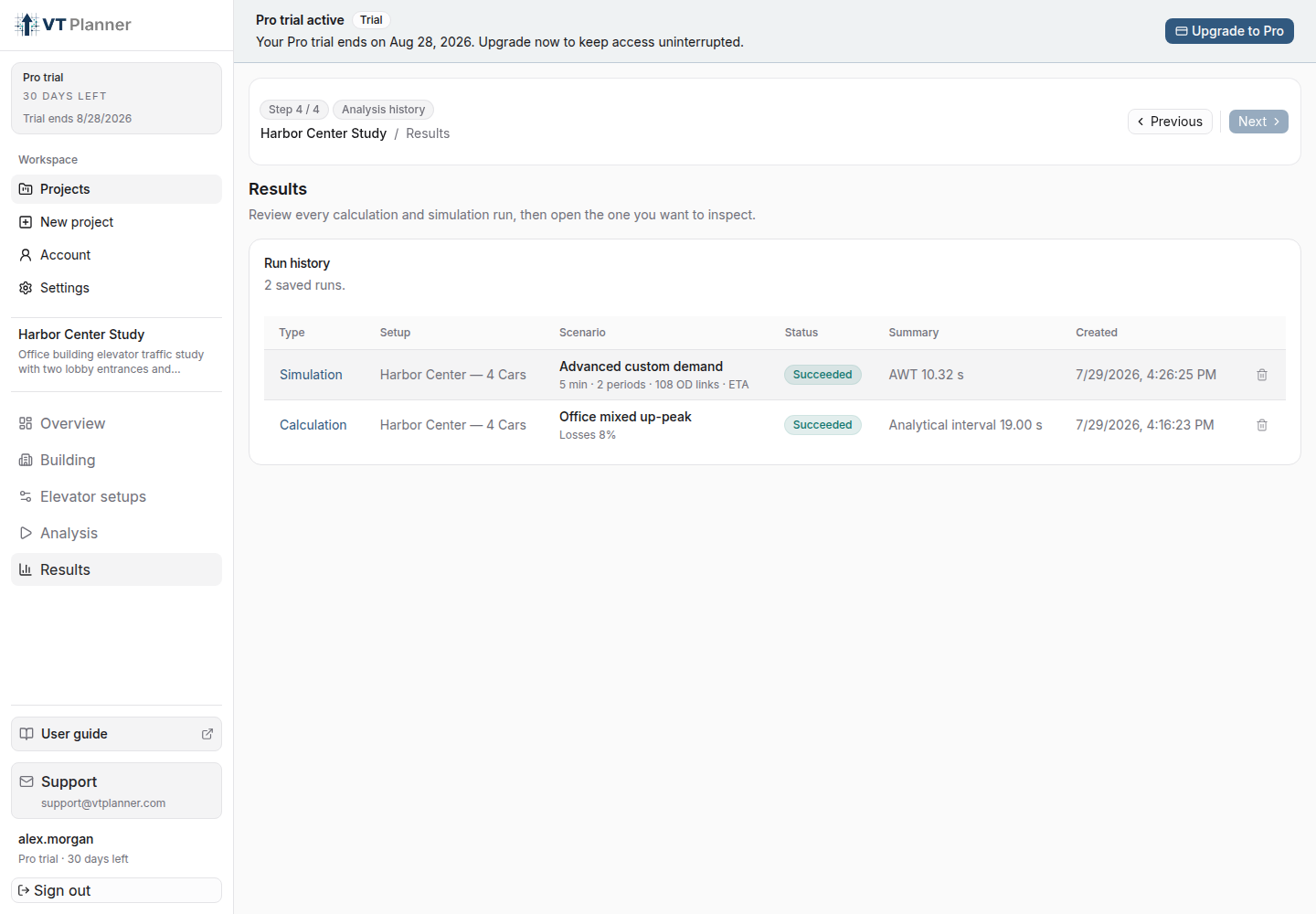
Run History
The table shows:
Type: Calculation, Simulation, Multi-run, or batch;Setup: the saved alternative used;Scenario: profile, method, dispatcher, duration, or other identifying context;Status;Summary;Created.
Select a row to open the full details.
Run Statuses
| Status | Meaning |
|---|---|
Queued |
Waiting to start. |
Running |
The run is being processed. |
Succeeded |
The requested analysis completed with a result. |
Partial |
The run produced a usable result but stopped before the requested horizon. |
Failed |
The run ended without a usable result; open the details to read the failure message. |
Cancelled |
Execution was stopped. When a valid partial result exists, its report remains available. |
Frozen Scenario
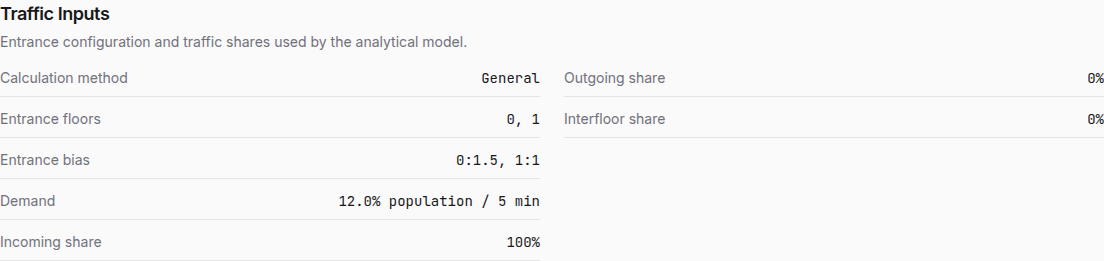
Every saved run preserves its building, elevator setup, analysis options, and run configuration. Completed and partial runs also preserve their result; a failed or cancelled run may have no usable result. Later project edits do not rewrite that history.
Before comparing metrics, verify:
- building version, entrances, bias, and population;
- setup name, car data, timings, and service zones;
- effective settings by car, when configured;
- Standard profile or Advanced demand schedule;
- dispatcher, duration, seed or multi-run policy, Stair factor, and energy-inclusion choice;
- capacity factor and load bypass;
- requested and effective duration.
Result Actions
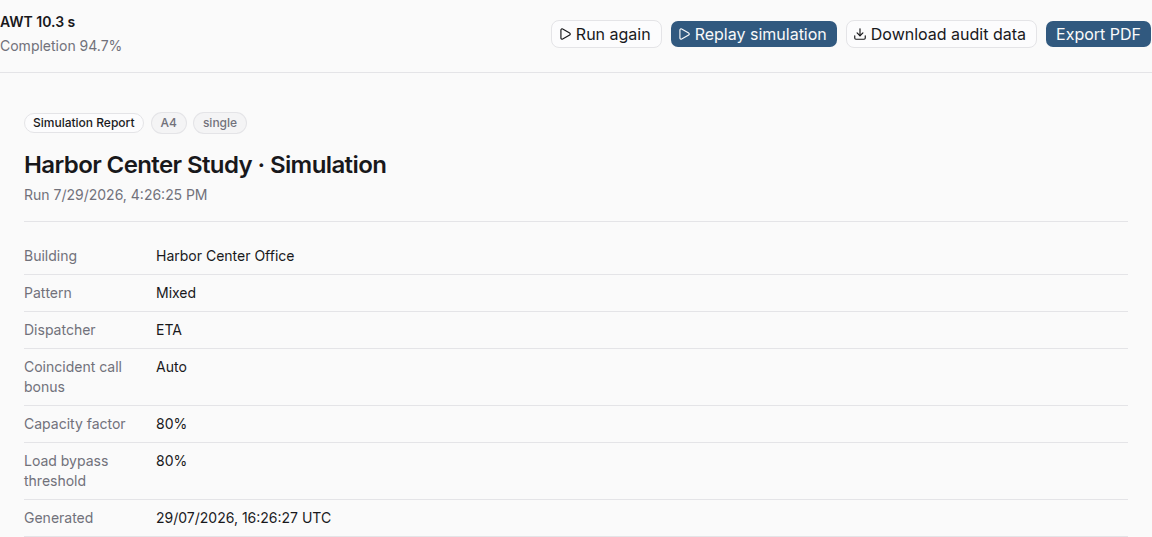
Depending on the run and its status, the detail view provides:
Run again: starts a new run from the saved scenario snapshot rather than substituting current project inputs;Replay simulationorReplay sample: regenerates a replay trace from the frozen simulation scenario when it is compatible;Download audit data: downloads a ZIP of CSV files for independent review;Export PDF: creates a shareable report;Delete run: permanently removes a completed, partial, failed, or cancelled run from project history.
Run again creates a new history entry after the saved scenario meets current launch requirements. The detail view lists any changes required before relaunch, while the original result remains available.
Calculation Results
Calculation reports emphasize:
RTT: representative car round-trip time;Analytical interval: calculated group service interval;Handling capacity: passengers moved in the reference window, also expressed as a percentage of population;- passenger-time estimates;
- occupancy and capacity factors;
- criteria and informational notes.
Use Calculation for sizing and screening. Confirm the traffic profile and losses before comparing alternatives.
Simulation Results
Simulation reports combine headline metrics with distributions and operational evidence:
Completion rate,Average Waiting Time,Time to Board,Transit, andJourneymeasures;- percentile and histogram views;
- passenger activity by direction and time window;
- queue behavior;
- transfer activity when applicable;
- car loads, stops, and spatial movement;
- main-terminal departure headway when the scenario is comparable.
In result labels, AWT means average waiting time, Dist means distribution, and Pctl means percentile.
Use the chart selector to show one chart at a time, and expand a chart when detailed inspection is needed.
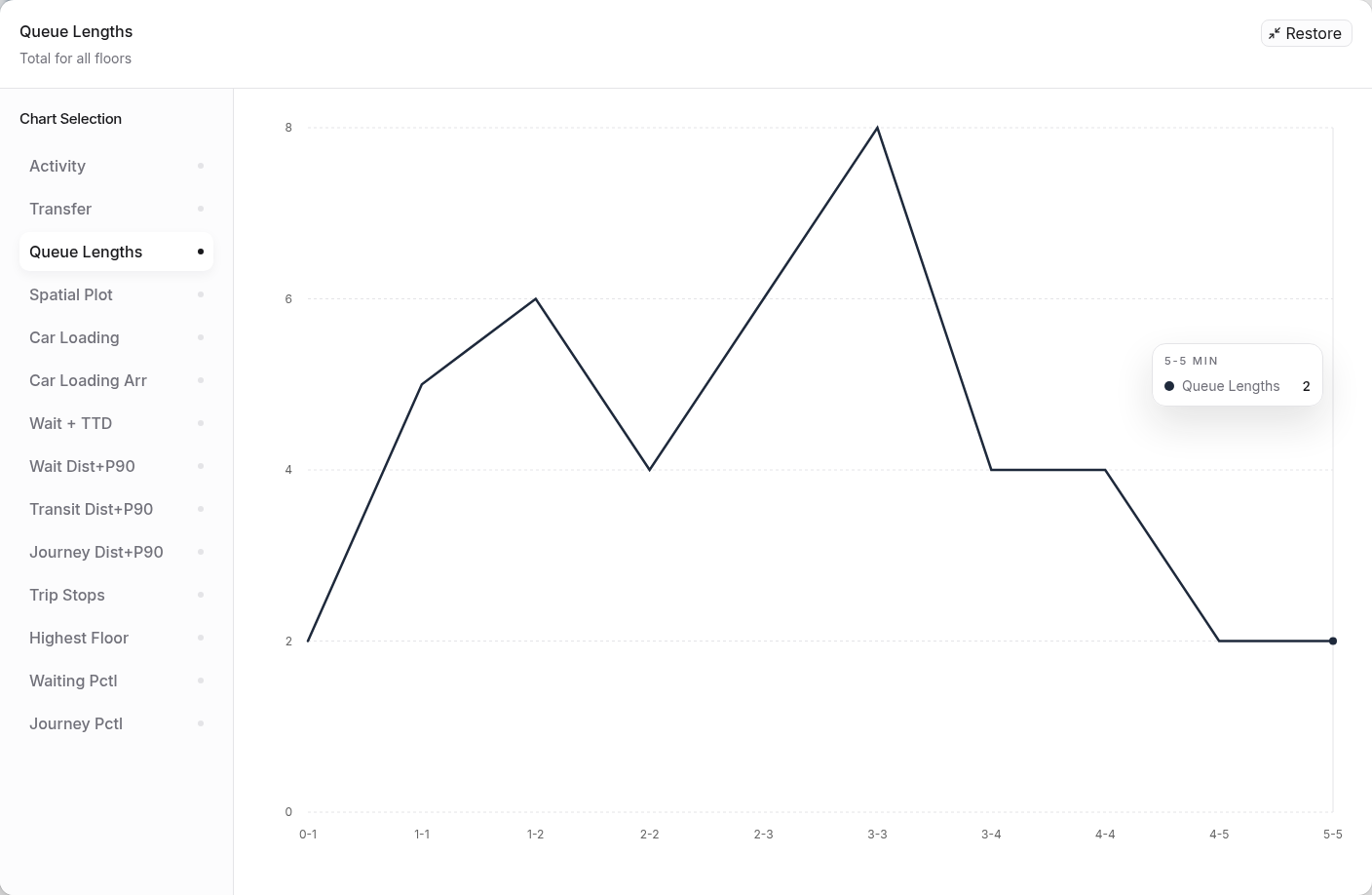
Passenger activity is grouped into five-minute windows; a shorter final window keeps its actual duration. In multi-run results, activity values are means across valid runs.
Treat main-terminal departure headway as an operational diagnostic, not a standalone quality-of-service score. Waiting, time to board, journey time, completion, and queues remain the primary passenger evidence, especially with destination dispatch or multiple entrances.
Multi-run Results
Multi-run reports include:
- valid, failed, cancelled, and aggregated run counts;
- mean metrics across valid runs;
- pooled passenger distributions;
- confidence intervals across valid aggregated runs;
- per-run results;
- a replay sample from one valid run.
The replay sample presents one valid simulation from the Multi-run set. Use the aggregate Multi-run metrics to understand average behavior.
Effective Settings by Car
When a simulation uses Different settings by car, the frozen report includes Effective settings by car. These are the fully resolved values after the group base and each car's saved differences are combined.
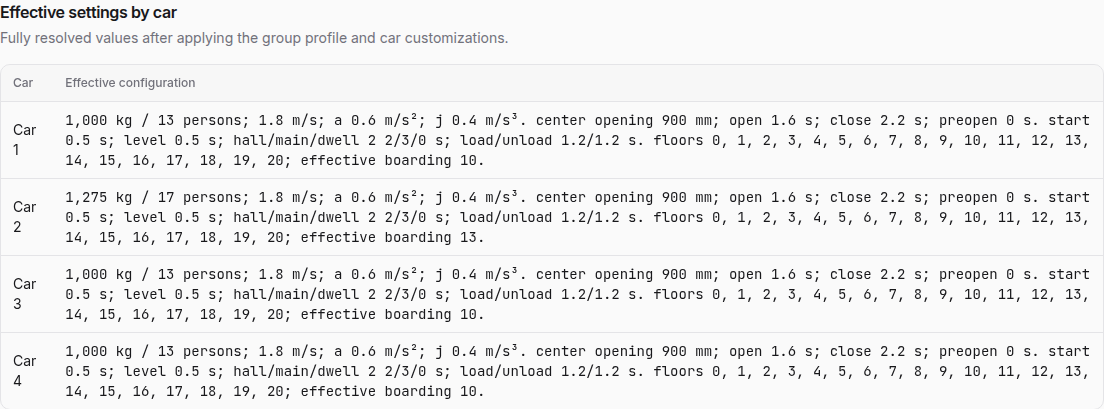
Replay uses each car's effective door and timing values. When rated capacities differ, car-loading charts use absolute passenger values; the capacity-percentage view applies to groups with a common rated capacity.
Operational Energy Results
When energy was included, the result adds Operational energy, its electrical balance and subsystem breakdown, normalized values, per-car allocation where applicable, and Effective assumptions. Multi-run provides means and confidence intervals. A Simulation batch keeps its Energy batch comparison separate from the traffic ranking.
See Operational Energy for the model choices, interpretation, and supported operating ranges.
Batch Results
A Compare variants result includes the common building and scenario, the sweep definition, and a ranked row for every generated alternative.
- Calculation batches rank lower analytical interval first, then higher handling capacity.
- Simulation batches rank lower waiting first; they then use main-terminal departure headway when that metric is comparable, otherwise journey time, followed by higher completion.
Use the ranking as a first comparison, then confirm car count, capacity, speed, demand, serviceability, and the relevant metrics. Energy estimates, when included, appear in a separate comparison. Use Export PDF to retain the complete batch report.
Replay
Replay regenerates a trace from the frozen scenario and helps explain a result spatially. Use:
- play and pause;
- previous and next event;
- the timeline;
- speed controls
1x,2x,5x,10x, and20x.
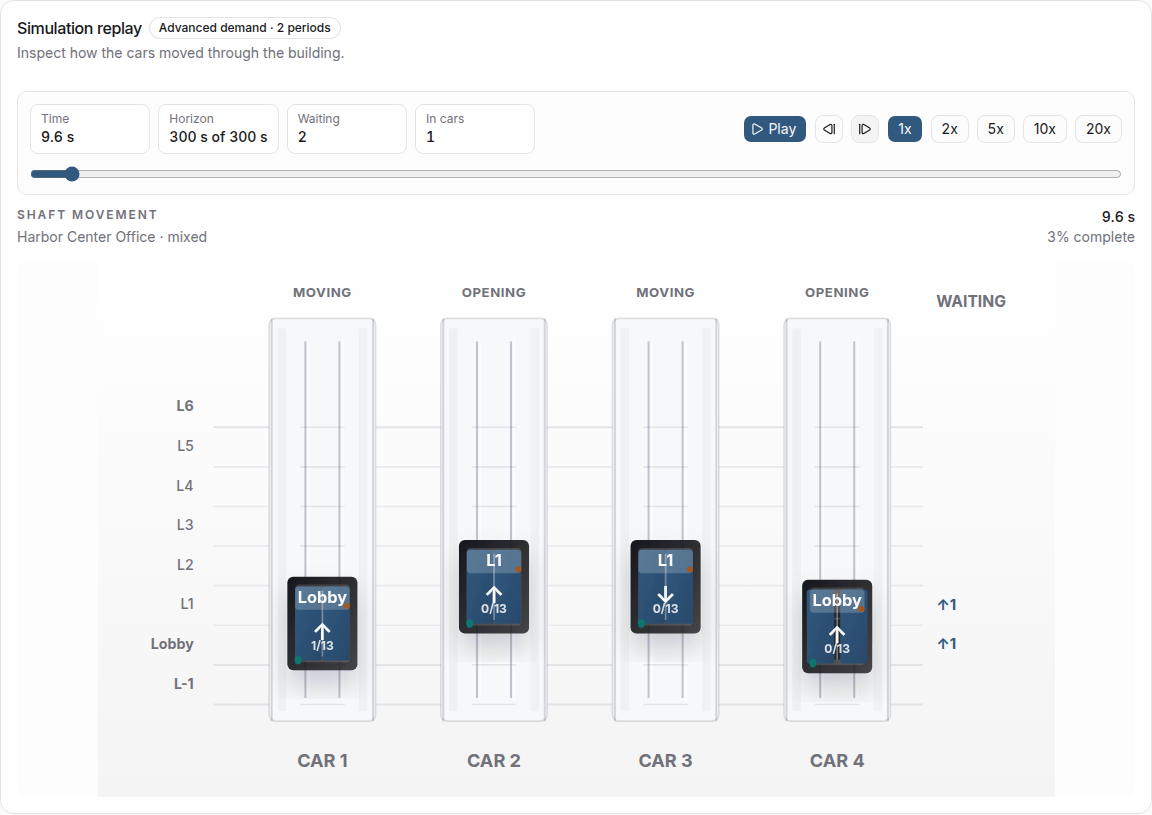
Inspect replay when a chart suggests a persistent queue, a transfer problem, unusual stop patterns, or load-related bypassing. Replay explains the selected trace; use report metrics for the aggregate conclusion.
Replay is available only for compatible Simulation and Multi-run simulation results and supports up to 65 upper floors and 12 elevators. For a larger scenario or an incompatible historical run, use the report, charts, and audit data.
Partial Results
A Partial simulation result shows:
- requested duration;
- effective simulated duration;
- the reason execution ended early.
Interpret its metrics only for the completed horizon. Do not treat it as equivalent to a full-duration result. Correct the cause and run again when the decision requires the full window.
Export and Retention
Use PDF for a readable report and audit data for tabular evidence. Review the generated files before sharing them outside the study.
Deleting a run permanently removes it from project history. Export any required report or audit data before confirming because the action cannot be undone.
Use Analysis Controls and Interpretation for a comparison checklist and the Technical Glossary for metric definitions.