
Documentation
VT Planner Workspace Guide
Learn how VT Planner organizes projects, project tabs, setup progress, contextual actions, settings, and support.
VT Planner organizes work at two levels: the general project list and the workspace inside each project.
Main Navigation
From the main navigation you can access:
Projects: projects available to the current user or account.New project: create a new project.Account: account and plan information.Settings: workspace preferences such as display units.User guide: open this documentation.Support: copy the support email address or the relevant account and page context.Sign out: end the current session.
Some actions depend on the plan, permissions, and account status.
Inside a Project
Each project has five tabs:
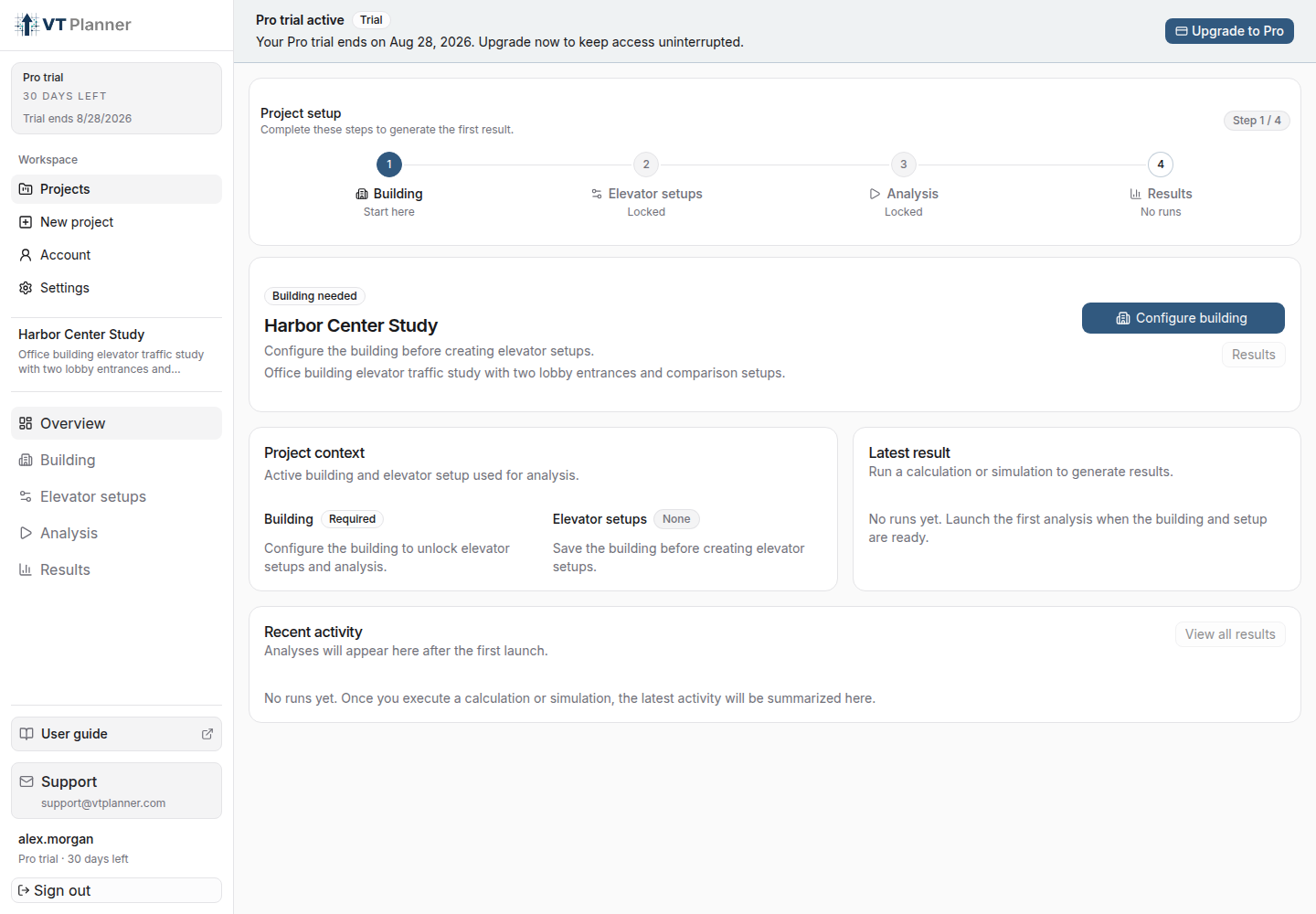
Overview: current context, latest result, and recent activity.Building: saved building or building editor.Elevator setups: fixed elevator configurations and variant comparisons.Analysis: setup selection and run launch.Results: history, saved snapshots, reports, charts, replay, and exports.
Setup Stepper
When project setup is incomplete, VT Planner shows Project setup. The stepper indicates the expected order:
Building: save geometry, entrances, and population.Elevator setups: save at least one configuration.Analysis: run the first analysis.Results: review the history and report.
Action Bar
In tabs such as Building, Elevator setups, and Analysis, the action bar shows:
- current step;
- status such as
Building saved,Draft setup,Setup ready,Setup outdated, orRead-only; - contextual actions such as
Save building,Save setup,Run calculation,Previous, andNext.
Settings
Use Settings to switch between Metric and Imperial display units. The preference affects building and elevator dimensions in forms, summaries, and supported report views.
See Settings for unit details and Account and Support for plan status, usage, profile, and support options.