
Documentation
VT Planner Account and Support Guide
Learn how to confirm or recover a VT Planner account, complete onboarding, manage subscription and usage, and contact support safely.
Use your account settings to manage your profile, subscription, usage, display units, and support requests.
Create and Confirm an Account
- On the login page, select
Create account. - Enter your email, choose a password of at least eight characters, confirm it, and submit the form.
- Open the newest confirmation email sent by VT Planner.
- On the
Confirm your emailpage, selectConfirm email. - After
Email confirmedappears, selectContinue.
The confirmation link is single-use. If the page offers Create account again, select it. Otherwise return to login, select Create account, submit the form again, and use the newest email.
Complete Onboarding
- Review and accept the Terms of Service and acknowledge the Privacy Policy.
- Enter your first name, last name, and country. Entering a company or organization is optional.
- Choose
MetricorImperialas your preferred unit system. - Select
Activate trial. - When the confirmation page appears, select
Start working.
Account Sections
| Section | What you can do |
|---|---|
Profile settings |
Review your login email, update your password, and sign out of the current session. |
Subscription |
Review plan status, access dates, usage, and billing options available to the account owner. |
Settings |
Choose the unit system used for supported inputs and displayed values. |
Support |
Copy account and page details or open your email app to contact support. |
Profile Settings
Open Account, then select Profile settings to review your login email, update your password, or sign out.
When updating your password, VT Planner may send a verification code to your login email. Enter it on the password-verification screen and keep it private.
Forgot Your Password
- On the login page, enter your email and select
Forgot your password?. - Open the newest password-reset email and follow its link.
- On
Choose a new password, selectContinueto verify the one-time link. - Enter and confirm a password of at least eight characters.
- Select
Update password, then return to login with the new password.
If the link is invalid, expired, or already used, return to login and request a new password-reset email.
Subscription and Usage
Open Account, then select Subscription.
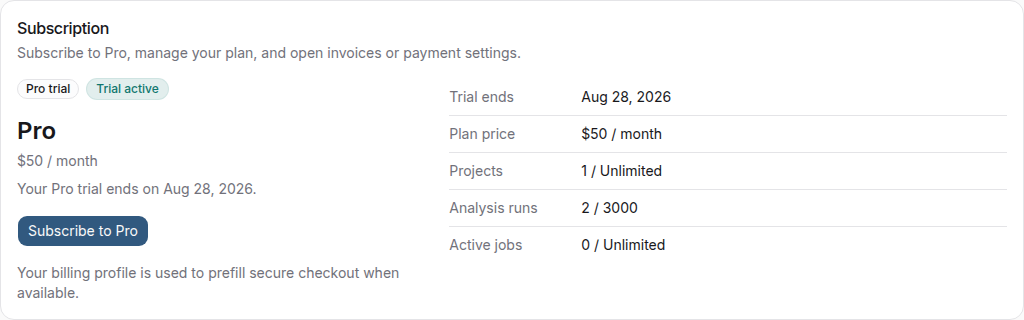
| Item | Meaning |
|---|---|
Subscription or trial status |
Your current plan, status, and relevant access dates. |
Projects |
The number of projects currently associated with the account. |
Analysis runs |
The number of runs used during the current period. |
Active jobs |
Analyses that are currently queued or running. |
The account owner manages the available billing controls, including the subscription, invoices, payment method, billing email, legal name, tax ID, and billing country.
Display Units
Open Settings to choose Metric or Imperial. The preference changes supported input formats and displayed values without changing the physical meaning of saved project data.
Contact Support
Open Support from the main navigation when you need help.
- Select
Copy support details. - Select
Open email app, or useCopy emailif you prefer another email service. - Paste the copied support details into your message.
- Describe what you expected, what happened, and the exact message shown on screen.
- Include the relevant project, elevator setup, and analysis status when applicable.
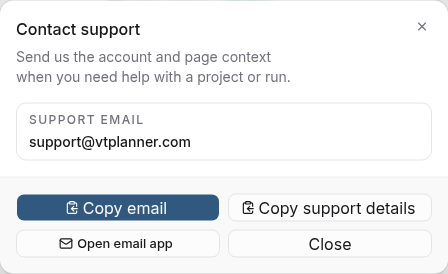
The copied support details include:
| Detail | Purpose |
|---|---|
| User | Identifies the signed-in user. |
| Account | Identifies the account associated with the request. |
| Page and path | Shows where the problem occurred. |
| Timestamp | Shows when the details were copied. |