
Documentation
VT Planner Advanced Custom Demand Guide
Learn how to build, validate, import, export, reuse, and compare time-varying origin-destination demand in VT Planner simulations.
Use Advanced custom demand… when a simulation needs absolute passenger rates, explicit origin-destination patterns, or demand that changes during the run.
Standard or Advanced
| Feature | Standard | Advanced |
|---|---|---|
| Demand unit | % population / 5 min |
Absolute passengers / 5 min by origin |
| Time behavior | One profile for the full simulation. | Up to 96 periods, each with its own demand and OD distribution. |
| Origins and destinations | Resolved from the profile, building, entrances, and population. | Entered explicitly and validated against the selected setup. |
| Best use | Fast setup and standard scenarios. | Measured demand, phased peaks, detailed OD assumptions, and time-varying studies. |
A Standard rate scales with population: 10% in a building with a population of 1,000 represents an expected arrival rate equivalent to 100 passengers per five minutes. An Advanced origin configured with 20 passengers per five minutes keeps that absolute rate while its period is active.
Create the Initial Draft
- Open
Analysisand selectSimulationorMulti-run simulation. - Select the Standard
Traffic profileclosest to the intended scenario. - Open
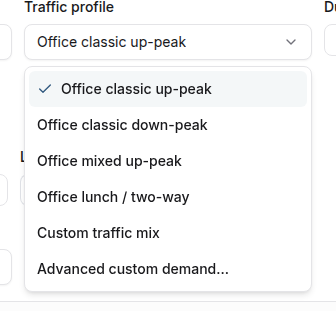
Traffic profileagain and selectAdvanced custom demand…. - Wait while VT Planner builds an editable OD schedule for the current building, setup, and duration.
- Review the prefilled periods before changing their demand.
Standard remains selected until you apply the draft with Use demand schedule.
Schedule Structure
Each period contains origin floors. Each origin has an absolute arrival rate and its own destination distribution.
| Item | Meaning |
|---|---|
| Period | A start time and an end time during which its demand is active. |
| Origin | The floor where passenger arrivals are generated. |
Passengers / 5 min |
The absolute arrival rate for that origin. |
| Destination | A reachable floor to which arrivals from the origin can travel. |
| Probability | The share of that origin's arrivals assigned to the destination. |
Destination probabilities are evaluated separately for each origin and must total 100% within that origin. If an origin generates 20 passengers per five minutes with 75% assigned to Level 5 and 25% to Level 10, the expected rates are 15 and 5 passengers per five minutes, respectively.
These are expected rates and probabilities, not guaranteed realized counts. A single stochastic simulation may not match the expected split exactly.
Configure Time Periods
The period table shows start, end, total rate, and origin count. You can:
- edit
Start (min)andEnd (min); - select a period to edit its OD data;
- change
Total passengers / 5 minto scale the period while preserving its OD shares; - split a period, duplicating its current demand into the two new periods;
- remove a period;
- generate the selected period from a Standard profile.
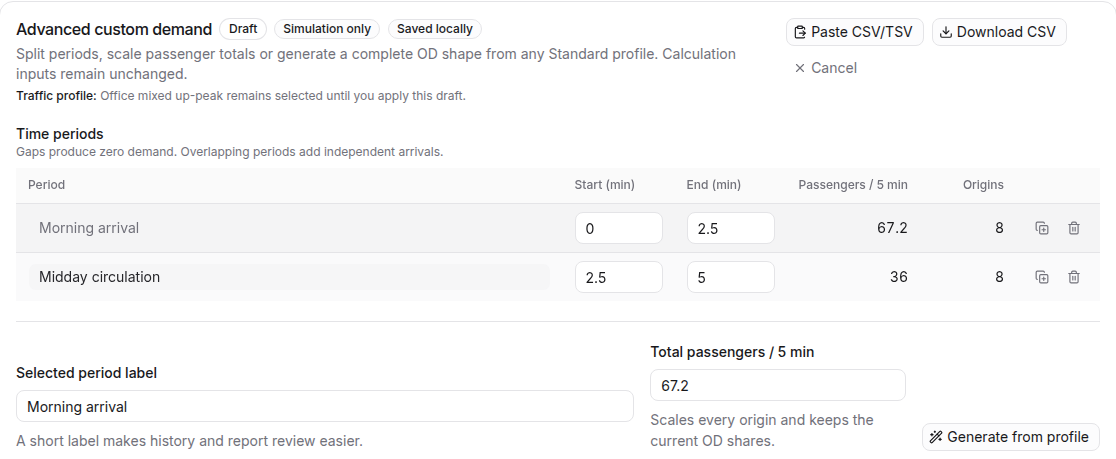
A gap between periods produces zero demand for that time. Overlapping periods remain independent, so their active arrival rates are added.
The schedule supports up to 96 periods and up to 16 simultaneously active periods. Review gaps and overlaps deliberately because overlapping rates are added together.
Generate From a Profile
Generate from profile replaces the selected period's OD content with a complete OD pattern derived from a Standard profile.
- Select the period.
- Select
Generate from profileand choose the profile. - Enter the period's
Total passengers / 5 min. - Choose the available destination-distribution option.
- Select
Generate period. - Review origins, destinations, and total demand.
Generating from a profile updates the selected period and preserves every other period.
Edit Origins
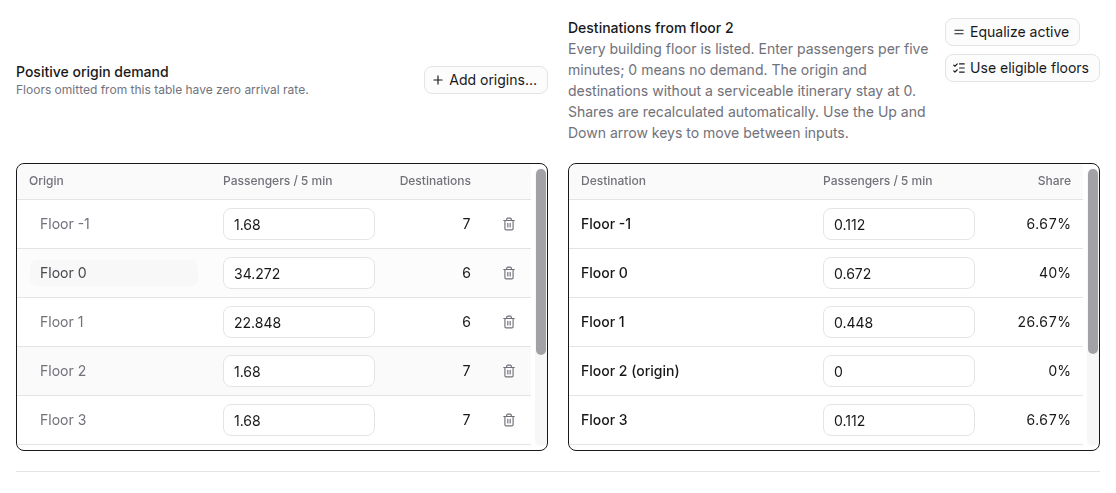
Passenger generation uses the listed origins with positive rates in the selected period. For each origin you can change its rate, edit destinations, or remove it.
Add origins… adds multiple origins at once and can distribute a combined total:
- by floor population;
- equally between selected floors.
It can also initialize destinations uniformly across eligible floors or use another available destination pattern. Review the preview before Apply origin batch, especially if a selected origin already exists.
Edit Destinations
Select an origin to see the destinations that are reachable with the current building and service model. Changing passenger amounts by destination updates the probability shares while preserving the origin total.
Equalize activedivides demand between destinations that already have positive demand.Use eligible floorsdistributes demand across all eligible destinations.
VT Planner flags or blocks the following conditions:
- the origin itself as a destination;
- a floor outside the current building;
- a destination that cannot be served through the selected zones and transfers;
- a duplicate destination within the same origin.
See Zoning and Transfers when an expected destination is not eligible.
Import and Export CSV
Use Download CSV to keep a portable copy of the current draft. Use Paste CSV/TSV to import sparse OD data with one row for each positive link.
| Line | CSV text |
|---|---|
| Header | period_id,period_label,start_min,end_min,origin_floor,arrival_rate_per_5_minutes,destination_floor,probability |
| Row 1 | morning,Morning,0,15,0,20,5,0.75 |
| Row 2 | morning,Morning,0,15,0,20,10,0.25 |
In this example, Level 0 generates 20 passengers per five minutes: 75% to Level 5 and 25% to Level 10. CSV probabilities use decimals from 0 to 1; 0.25 means 25%.
- Select
Paste CSV/TSVand paste the header and OD rows. - Review period count, positive links, peak rate, time coverage, and messages.
- Select
Import into draftwhen the preview is correct. - Review the imported periods in the editor.
- Resolve every blocking error, then apply the draft.
The accepted import replaces the current draft. Data that can be read but is invalid may be imported for repair, but it cannot be applied until it is valid.
Local Draft Autosave
The editor stores the working draft in the current browser when local storage is available. Saved locally confirms the draft was stored.
Local autosave preserves the draft in the browser; Use demand schedule activates it. If Local save unavailable appears, download the CSV before leaving.
Validate and Apply
Validation uses the current building, simulation duration, elevator setup, and service model. It checks:
- period start and end times against the simulation duration;
- valid origin and destination floors;
- positive origin arrival rates;
- at least one destination per origin;
- destination probabilities totaling 100% per origin;
- no duplicate origins or destinations;
- an origin that differs from its destination;
- a serviceable itinerary for every positive OD pair.
Gaps and overlaps produce warnings rather than blocking errors. A gap means zero demand during the uncovered time; overlapping periods add their active rates. Blocking errors appear under Review required.
- Open each message and correct the affected period or origin.
- Select
Use demand schedule. - Confirm that the Advanced summary is active and ready.
| Action | Result |
|---|---|
Use demand schedule |
Validates and applies the draft to the next simulation. |
Cancel while Standard is selected |
Closes the draft and keeps Standard demand active. |
Cancel while Advanced is active |
Closes the editor and retains the last applied schedule. |
Use standard |
Stops using the Advanced schedule for new simulations while retaining its saved snapshot. |
Close the editor with Use demand schedule or Cancel before launching the simulation.
Reapply After Context Changes
An applied schedule becomes stale when you change the saved building, simulation duration, or selected elevator setup.
- Open
Edit demand. - Review periods against the new duration.
- Review origins, destinations, zones, and transfer paths.
- Resolve new validation messages.
- Select
Use demand scheduleagain.
What Happens After Launch
After a run using the applied Advanced schedule launches, Traffic profile returns to Standard for the next run. The exact Advanced schedule remains frozen with the launched result and the editable schedule remains available from the profile menu.
To reuse the schedule, reopen Advanced custom demand…, review it, and apply it.
Load Demand From a Selected Run
A saved result from an Advanced run can become a new editable draft:
- Open
Resultsand select the Advanced run. - Return to
Analysis. - Select
Load demand from selected run. - Review the restored periods, OD data, setup, and duration.
- Select
Use demand schedulewhen ready.
Loading historical demand restores an editable draft. Review it and select Use demand schedule to activate it.
Controlled Comparisons
For like-for-like comparisons using Advanced demand:
- Use the same building version and equivalent demand schedule.
- Keep setup, dispatcher, duration, capacity factor, load bypass, Stair factor, and coincident bonus fixed unless one is the comparison variable.
- Use the same seed for single simulations.
- Use the same run count and seed policy for Multi-run.
- Compare runs with equivalent requested and effective durations.
To check a Standard profile against its generated Advanced equivalent, open Advanced from that Standard profile and leave the generated periods, rates, and OD distribution unchanged. Keep all other controls aligned. Small differences between stochastic samples may still reflect random variation; use Multi-run simulation when the decision depends on a narrow margin.